
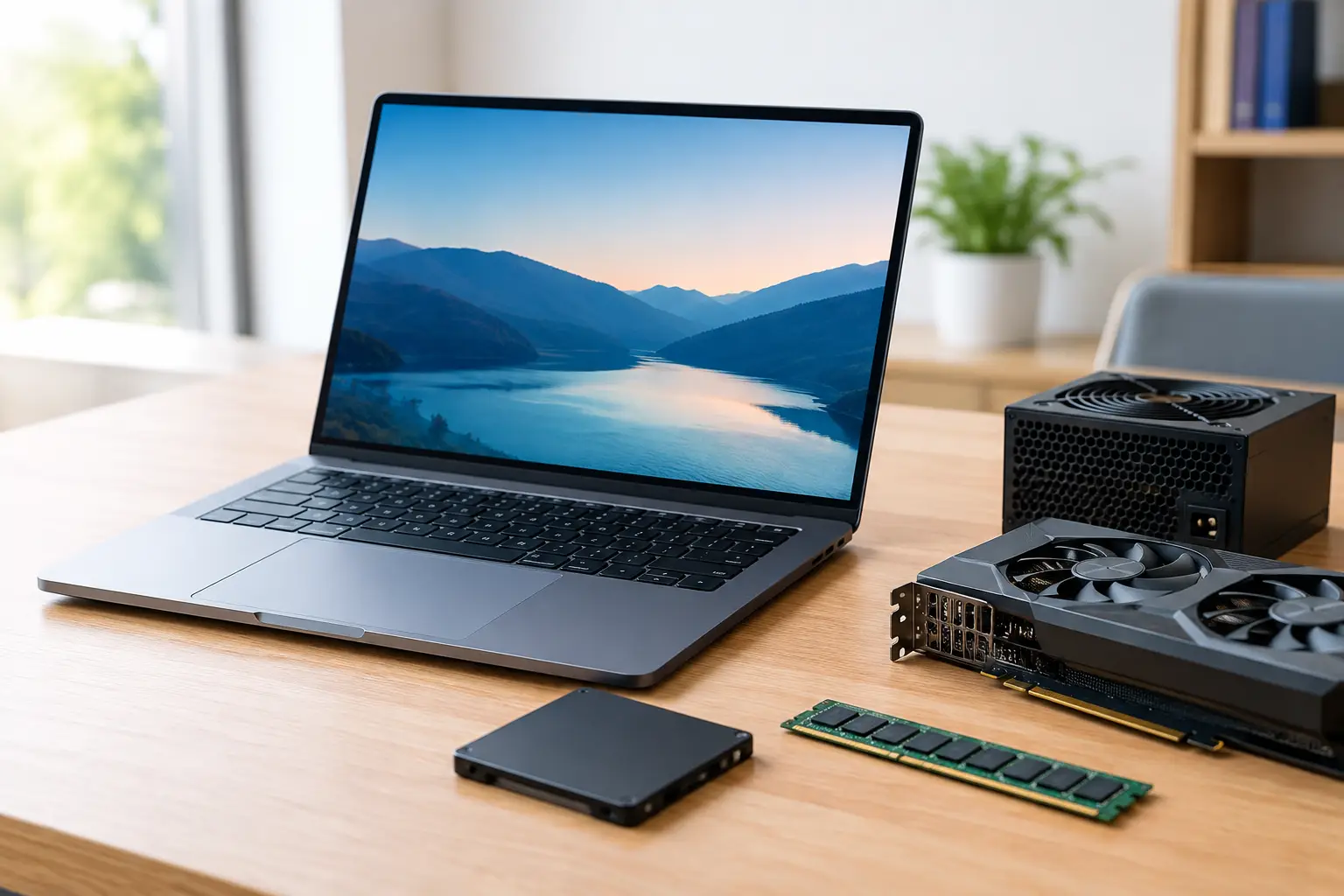
A computer that takes ages to start, freezes while checking emails, or struggles with everyday accounting software can quickly become frustrating. The best upgrades for slow computer performance are usually not the most expensive ones – they are the upgrades that address the actual cause, suit how you use the machine, and offer sensible value.
For many homes and small businesses around Caboolture, Morayfield and Moreton Bay, a well-chosen upgrade can add years of useful life to a desktop or laptop. For others, particularly where the computer is very old or incompatible with current software, putting money towards a replacement is the more practical choice. The first step is working out which situation you are in.
Start by finding what is slowing it down
Slow performance is not always a hardware problem. A computer can feel sluggish because it has an ageing hard drive, too little memory, unnecessary programs starting in the background, limited free storage, malware, or a Windows installation that needs attention. Wi-Fi faults can also make online tasks seem slow even when the computer itself is working properly.
Before buying parts, consider when the problem occurs. If the computer is slow from the moment it turns on, the storage drive is often the main suspect. If it slows down only when several browser tabs, emails and documents are open, extra RAM may help. If it is slow only on the internet, the network or Wi-Fi setup deserves checking first.
This is especially important for small businesses. A slow computer used for invoicing, stock control or customer records may have a simple fix, but a failing drive can also put valuable data at risk. A proper check can prevent spending money on an upgrade that does not solve the real issue.
Best upgrades for a slow computer
Replace the hard drive with an SSD
For most older computers, replacing a traditional mechanical hard drive with a solid-state drive, known as an SSD, delivers the most noticeable improvement. Mechanical drives have moving parts and become slower as they age. An SSD has no moving parts, so it can start Windows, open programs and save files far more quickly.
A computer that once took several minutes to boot may be ready for use in well under a minute after an SSD upgrade. Everyday jobs such as opening photos, searching documents and launching web browsers also feel much more responsive.
The important detail is the data transfer. Installing a new drive is only part of the job. Your files, email settings, programs and Windows installation need to be moved correctly, or backed up and restored. If the old drive is failing, acting early is wise. Waiting until it stops working altogether can make recovery more difficult and costly.
An SSD is generally a great-value option for a computer that is otherwise in good condition. It will not fix a weak processor or an unsupported operating system, but it can transform the experience of using a suitable older machine.
Add more RAM for everyday multitasking
RAM is the computer’s short-term working space. When there is not enough available, Windows has to rely more heavily on the storage drive, which causes delays when switching between tasks. This is common on computers with 4GB of RAM, particularly if you use web-based email, video calls, Microsoft 365, accounting software or lots of browser tabs.
Moving from 4GB to 8GB can make a real difference for general home use. For busy home offices and many small business computers, 16GB may provide more comfortable room for multitasking. The right amount depends on the computer, the programs used and whether the machine can accept additional memory.
RAM upgrades are not always possible in laptops, as some models have memory soldered to the main board. They are also less useful if the real bottleneck is a failing hard drive. In many cases, an SSD and a RAM upgrade together provide the best balance of speed and value.
Upgrade storage capacity when the drive is full
A nearly full drive can affect performance and makes it harder to install Windows updates, save files or maintain reliable backups. This often happens when years of photos, downloads, email attachments and duplicate files have built up on a smaller drive.
A larger SSD can solve both speed and capacity problems at once. It also creates room to organise files properly, set up cloud storage where appropriate and maintain a local backup. For a family computer, this can mean easier access to photos and important documents. For a business, it helps reduce the risk of having essential records stored in one crowded, ageing machine.
Simply deleting files is not always the best answer. Important documents should be sorted and backed up before any clean-up takes place. A technician can help identify what is safe to remove and what needs to be retained.
Consider a processor or graphics upgrade carefully
A processor upgrade can help with demanding work such as video editing, design programs, large spreadsheets or specialised business software. However, it is not normally the first upgrade recommended for a slow general-use computer. Processor upgrades can require compatible parts, a motherboard update and sometimes a new power supply or cooling system.
A graphics card upgrade is worthwhile for gaming, 3D design or multiple high-resolution displays, but it will not make email and basic web browsing dramatically faster. On many older computers, the cost of major internal upgrades can approach the price of a newer refurbished or custom-built system.
This is where honest advice matters. It may be better value to retain a good monitor, keyboard and printer while replacing the computer itself with a system that is ready for current software and future updates.
Do not overlook Windows and software maintenance
Hardware is only one side of computer performance. A computer can remain slow after an upgrade if it is carrying years of unwanted programs, outdated software, browser extensions or malware. A clean-up may involve removing unnecessary start-up items, checking security software, updating Windows and ensuring enough free space remains on the drive.
Windows 11 compatibility is also worth considering. Some older computers can run well after an SSD and RAM upgrade but are not suitable for a supported Windows 11 installation. Continuing to use an operating system after support ends can create security and compatibility issues, particularly for online banking, customer information and business records.
In some cases, a fresh Windows installation, software setup and careful transfer of files is the cleanest path forward. It takes more planning than simply adding a part, but it can remove long-standing software problems and give the computer a more reliable foundation.
When replacement is the smarter investment
An upgrade is less appealing when a computer has several ageing components, frequent faults, battery problems, cracked hinges, overheating, or no path to a supported operating system. It is also worth replacing a machine if it cannot keep up with the work it needs to do, even after basic improvements.
For a home user, a quality refurbished desktop or laptop can be a cost-effective alternative to repairing a very old machine. For a small business, a new computer may offer better reliability, warranty protection and less downtime. The right choice should account for setup, data transfer, software licensing, printers, email and network access – not just the ticket price of the computer.
A replacement does not have to mean starting from scratch. Files, photos, emails and many settings can be transferred, while cloud storage and backup arrangements can be improved at the same time. That makes the change less disruptive for homes and businesses alike.
Get the upgrade matched to your needs
The most useful computer upgrade depends on what you do each day. A family desktop used for internet banking, schoolwork and photos has different needs from a laptop running a mobile business, or an office computer managing accounting and customer records.
AllTec Computer Services can assess slow computers on-site across the local area, explain the practical options in plain English and help with upgrades, data transfer, Windows setup and replacement systems where needed. The goal is not to sell parts for the sake of it, but to give you a computer that is dependable for the jobs you need it to handle.
If your computer is becoming a daily source of delays, it is worth checking it before a small problem turns into lost files or unwanted downtime. A sensible upgrade may be all it takes to make using it feel straightforward again.