
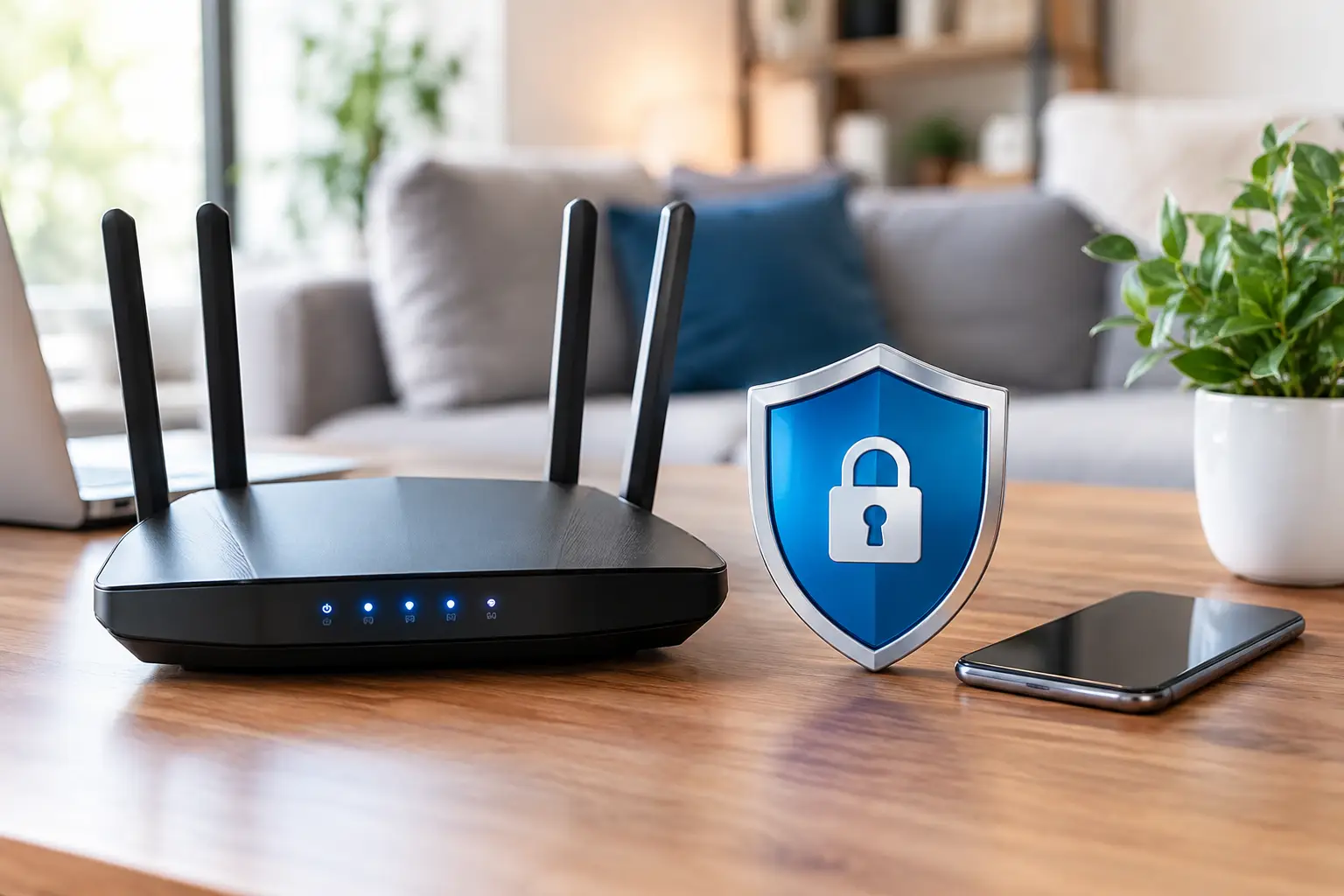
A home Wi-Fi network is often the front door to far more than internet access. It connects your phones, computers, smart TV, printer, security cameras, work files and sometimes the devices your children use for school. The best ways to secure home Wi-Fi are usually straightforward, but they do need to be set up properly and checked from time to time.
Many people still use the router settings installed by their internet provider years ago. That can leave an old password, out-of-date software or unnecessary features running in the background. A few sensible changes can make it much harder for strangers to join your network or access connected devices.
Start with your router, not just the Wi-Fi password
Your router controls who can access your network. If its settings are weak, changing the Wi-Fi password alone may not be enough. Begin by logging in to the router’s administration page or app. The instructions are often on a label underneath the unit, in the provider’s setup paperwork or within the provider’s mobile app.
The first job is to change the router administrator password. This is different from the password used to join your Wi-Fi. The administrator password gives access to the network settings themselves, so it should never be left as the default printed in the manual or commonly used by the manufacturer.
Choose a long, unique passphrase rather than a short word with a number at the end. A phrase made from four unrelated words is easier to remember and harder to guess, such as a private combination of words, numbers and punctuation. Avoid using your address, surname, business name, pet’s name or anything easily found on social media.
Use WPA3 security where possible
In the wireless security section of your router settings, look for WPA3-Personal. This is the current preferred option for most home networks. If an older printer, camera or laptop will not connect with WPA3, WPA2-Personal using AES encryption is still a reasonable option.
Avoid WEP and older WPA settings. They are outdated and should not be used on a modern home or small business network. Some routers display a mixed WPA2/WPA3 mode, which can be useful where newer and older devices need to work together. It is a practical compromise, though WPA3 only is stronger where all your devices support it.
Your Wi-Fi password should also be long and unique. Do not reuse the password from your email, online banking, streaming account or work login. If someone learns a reused password through an unrelated data breach, they may try it on your home network too.
Keep router software up to date
Router manufacturers release firmware updates to fix faults and security issues. Newer routers may update automatically, but many older models require you to check manually through the administration page or provider app.
Make checking updates part of your regular technology housekeeping, perhaps every few months. If your router no longer receives updates, is very slow or does not support WPA2 at a minimum, replacement is worth considering. This matters especially for homes with security cameras, smart locks, home-office computers or sensitive client information.
A power outage can occasionally reset or affect network equipment, particularly in regional areas. If the internet behaves strangely after an outage, check that the router is working normally and that its settings have not reverted to defaults.
Create a separate guest network
A guest network gives visitors internet access without putting them on the same network as your computers, printer, storage drive or smart home equipment. It is one of the simplest ways to improve privacy when friends, tradespeople or clients visit.
Give the guest network its own password and change it occasionally, especially if it has been shared widely. If your router offers a setting called client isolation or guest isolation, turn it on. This stops guests from seeing or communicating directly with other devices on the network.
For a home office or small business operating from home, a separate guest network can also keep customer or contractor devices away from work systems. Depending on the router, it may be possible to create a separate network for smart devices as well. This can be useful because older smart TVs, speakers and cameras do not always receive security updates for as long as computers and phones.
Turn off features you do not use
Most routers come with extra features designed for convenience. Some are helpful, but unused features can create an unnecessary security risk. Review the settings and disable anything you do not need.
The main features worth checking include:
- WPS, which allows devices to connect using a button or PIN. It is convenient but generally better left off.
- Remote administration, which allows router settings to be accessed from outside your home. Leave it disabled unless there is a clear need and it has been configured securely.
- UPnP, which can automatically open connections for games and devices. It can be useful in some homes, but should not be enabled without understanding why it is needed.
- Port forwarding rules that are no longer in use. Remove old entries created for games, cameras or remote access software.
There can be exceptions. A person who works remotely may need a carefully configured remote-access solution, and gamers may need particular connection settings. The key is to enable only what is required, rather than leaving every option switched on.
Check which devices are connected
Most router apps and administration pages show a list of connected devices. Take a few minutes to look through it. You may see phones, tablets, TVs, printers, cameras, consoles and smart appliances, often listed under a manufacturer name rather than a clear device name.
If you find a device you do not recognise, do not assume it is an intruder straight away. It may be an older phone, a visitor’s tablet or a smart device with an unfamiliar label. Check it carefully. If it cannot be identified, change the Wi-Fi password, reconnect only trusted devices and review the router’s security settings.
This is also a useful way to spot devices that should be replaced or disconnected. An old internet-connected camera with no available updates may not be worth keeping on the main network.
Secure every device that uses your Wi-Fi
A well-configured router cannot completely protect a computer or mobile with weak passwords, outdated software or suspicious apps. Keep automatic updates turned on for Windows, macOS, phones, tablets and security software. Update smart TVs, cameras and other connected devices where updates are available.
Use screen locks on mobiles and laptops, particularly for home-office work. Each person in the household should have their own login on shared computers. This protects files and reduces the chance that one accidental download affects everyone.
For families, it is also worth discussing scam messages and fake login pages. Wi-Fi security prevents unauthorised access to your network, but it cannot stop someone from entering a password into a convincing phishing email. A cautious habit is just as valuable as a strong router setting.
Position the router sensibly
Router placement is usually discussed as a speed issue, but it can support security too. Place it in a central part of the home where practical, rather than directly beside a front window or external wall. You cannot completely stop the signal reaching outside, but sensible placement can reduce how far it travels into the street or neighbouring properties.
Do not hide the router inside a metal cabinet or behind thick furniture just to keep it out of sight. Poor signal can lead people to install cheap repeaters or make rushed changes to settings. A stable, well-planned network is easier to manage securely.
Larger homes, sheds, granny flats and rural properties often need more than a single router. Mesh Wi-Fi or correctly installed access points can provide better coverage than a chain of old extenders. The right solution depends on the property layout, building materials and where reliable coverage is needed.
When to ask for help with home Wi-Fi security
It is worth getting practical support if you cannot access your router settings, have unknown devices appearing regularly, need coverage across a large property, or run a business from home. A technician can check security settings, update equipment, separate guest or work networks, and make sure printers, cameras and computers are connected safely.
For local households and small businesses across Caboolture, Morayfield, Woodford, Wamuran and the wider Moreton Bay area, AllTec Computer Services can provide on-site help without the hassle of unplugging your equipment and taking it to a shop.
Home Wi-Fi security does not need to be complicated. Start with a strong administrator password, current router software and a properly secured wireless network, then check in occasionally. Those small steps help keep your home, work and connected devices where they belong – in your control.