
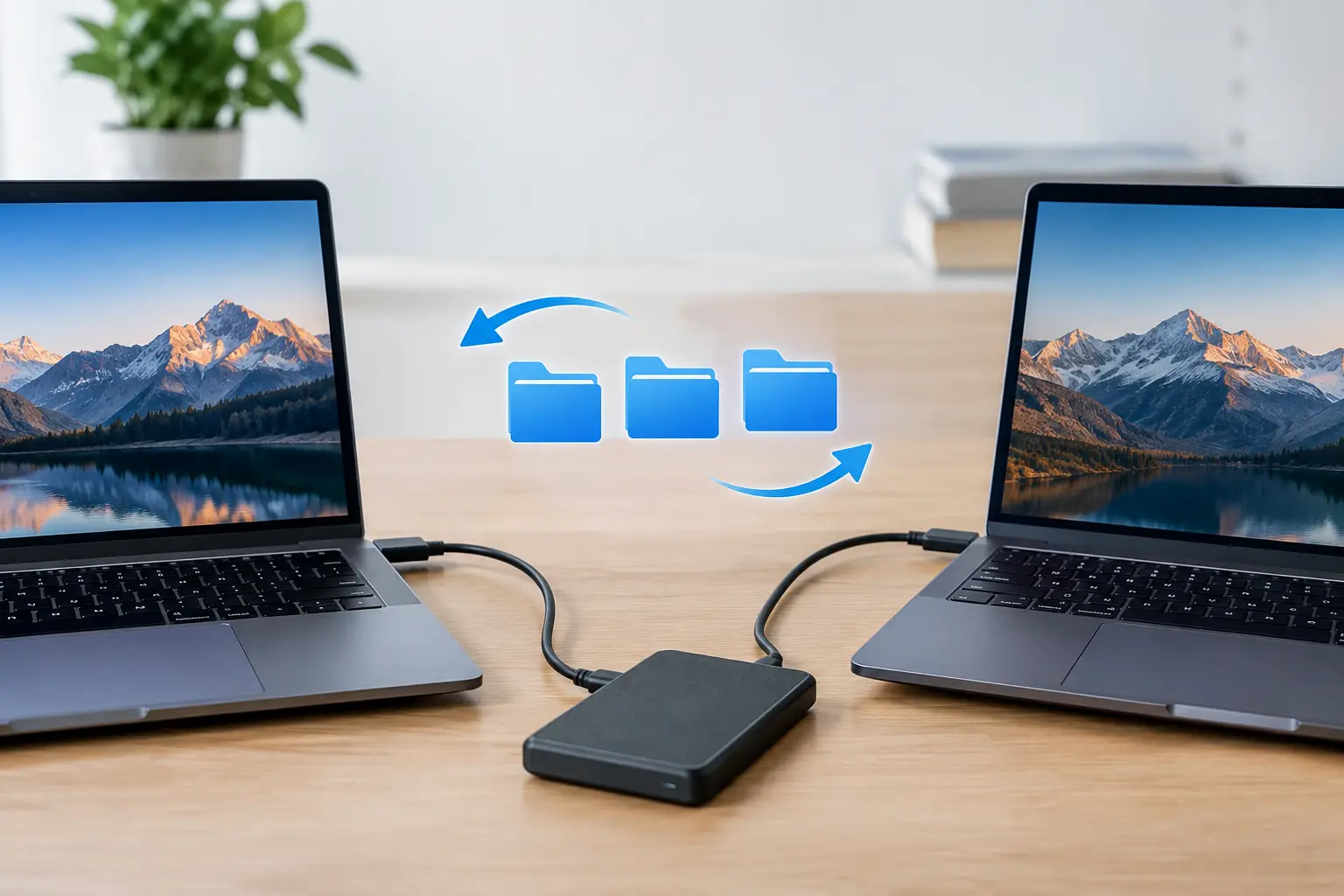
A new computer should feel like an upgrade, not a worry about losing years of photos, emails, documents and business records. When you need to transfer files between computers, the best method depends on how much data you have, whether both computers are working properly, and how quickly you need to be up and running.
For a few folders, a USB drive may be enough. For a family computer with years of photos or a small business PC with customer files, accounting records and email, a more careful approach is usually the safer choice. The goal is not simply to copy data across. It is to make sure the right files arrive intact, open correctly and are protected along the way.
Start by working out what needs to move
Many people think of a file transfer as moving everything from one computer to another. In practice, there are several different parts to consider. Your personal files may include Documents, Pictures, Desktop files, Downloads, music, videos and email attachments saved in different locations.
Programs are separate again. Copying a program folder does not normally install that program on the new computer. Most software needs to be installed properly, then signed in to or activated with the relevant licence. This applies to Microsoft 365, accounting software, antivirus programs and many business applications.
Email also needs special attention. If you use webmail such as Gmail, Outlook.com or Microsoft 365, your messages may already be stored online and will appear after you sign in. If you use an older email program that keeps mail on the computer, those messages and contacts may need to be exported or migrated separately.
Before beginning, take a moment to identify what matters most. For home users, this is often photos, documents, email and browser favourites. For a business, it can include customer data, MYOB or other accounting files, templates, shared folders, scanned records and passwords for essential services.
Choose the right way to transfer files between computers
There is no single best option for every household or office. A method that is perfectly suitable for a few gigabytes of documents may be slow or risky for hundreds of gigabytes of photos and business data.
USB flash drive or external hard drive
A USB flash drive is convenient for small transfers. It is useful when you only need to move a handful of Word documents, spreadsheets or photos. For larger jobs, an external hard drive or solid-state drive is generally more practical. It can hold far more data and does not rely on your internet connection.
The trade-off is that portable drives can be misplaced, damaged or accidentally formatted. They can also carry malware if either computer has an infection. Always scan the drive and avoid deleting the original files until you have checked that the copied versions open properly on the new machine.
Cloud storage
Cloud storage can be a sensible option for documents that need to remain available across several devices. Services such as OneDrive, Google Drive and Dropbox can synchronise selected folders to a new computer once you sign in.
This works well for home-office documents and smaller file collections, particularly where a reliable NBN or fixed wireless connection is available. It is less ideal for a large photo library or video archive if your upload speed is slow or your internet plan has limits. Cloud syncing can also cause confusion when duplicate folders or conflicting versions are created, so it is worth checking the folder structure before relying on it.
Direct network transfer
If both computers are at the same home or office and connected to the same network, files can be copied over the local network. This avoids uploading and downloading data through the internet. A wired Ethernet connection is usually faster and more dependable than Wi-Fi, especially for large folders.
Network sharing needs to be set up carefully. Incorrect permissions can leave folders unavailable or, in a business setting, expose information to people who should not have access. It is a useful option when configured correctly, but not always the easiest path for someone who does not regularly manage computer settings.
Specialist migration and backup tools
Some computer migration tools can move user profiles, files and selected settings. These can save time, but they are not magic. Results vary depending on the age of the old computer, the version of Windows, the programs installed and the condition of the data.
For important machines, particularly those used for work, a verified backup plus a planned transfer is often more reliable than relying on an automated tool alone. It may take a little longer, but it gives you a clear fallback if anything goes wrong.
Protect your data before you move it
A transfer is a good time to tidy up old files, but do not make major changes to the original computer before a safe copy exists. People sometimes clear the Downloads folder, empty the Recycle Bin or remove old email files, then discover an important item was stored there.
Before starting, make sure you have:
- a current backup of the old computer or, at minimum, the important folders
- enough space on the new computer, external drive or cloud account
- passwords for email, cloud storage, software licences and online services
- access to any business applications, shared folders and printers you need after the move
It is also wise to check whether files are encrypted. BitLocker-protected drives, password-secured archives and encrypted accounting data may need recovery keys or passwords before they can be accessed elsewhere. If you are not sure what has been encrypted, it is better to check first than risk being locked out of your own files.
Do not forget the settings that make a computer feel familiar
The files are only part of the changeover. A new PC can be technically ready while still being frustrating to use because the everyday settings have not been sorted out.
Browser favourites, saved passwords, email signatures, printer settings and desktop shortcuts are easy to overlook. So are contacts stored locally in an old email program. If you use specialist software, check whether it stores templates or data in a separate folder. This is common with accounting programs, design software and older business applications.
For small businesses, test the essentials before retiring the old computer. Open a customer file, print a document, send and receive an email, access shared folders and log in to key websites. If the new computer connects to a network drive or shared printer, confirm it works under the correct user account rather than assuming it will be available later.
Check the transfer before removing the old data
Once the files appear on the new computer, resist the temptation to wipe, sell or recycle the old one straight away. Spend time checking the files that matter. Open several documents, view older photos, test spreadsheets, search email and confirm that recent as well as older files are present.
Pay close attention to file dates and folder sizes. A transfer that looks complete at first glance may have missed hidden folders, files with unusual names or data stored outside the standard Documents and Pictures locations. If you have moved a large number of files, comparing folder sizes can quickly show whether something is missing.
Keep the old computer or a separate backup untouched until you have used the new machine for a little while and are confident everything you need is available. For business data, keeping more than one backup is a sensible safeguard.
When it is worth getting local help
A straightforward transfer can become complicated when the old computer is slow, failing to start, infected with malware or running an older version of Windows. The same applies when files are spread across several external drives, cloud accounts and email programs.
For homes and small businesses around Caboolture, Morayfield, Woodford, Wamuran and the wider Moreton Bay area, on-site help can remove much of the uncertainty. A technician can assess the old and new computers, transfer the right data, set up email and cloud storage, reconnect printers and make sure the new system is ready for normal use. AllTec Computer Services can also help when a Windows 11 upgrade or replacement computer is part of the job.
A careful transfer gives you more than a new computer. It lets you sit down, find what you need and get back to your day with confidence.